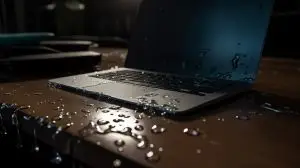
Coffee, a water bottle, a spilled glass, a rainy commute: the laptop is wet and it either died on the spot or is behaving strangely. The good news, and it is genuinely good, is that the part of the laptop holding your files is the part least likely to be damaged. The bad news is that the most common first reactions make things worse. Here is what actually happens inside a wet laptop, what to do in the first hour, and how the data comes back.
What liquid does to a laptop, and why the drive usually survives
Water itself is not the killer. Water with power running through it is. The moment liquid bridges two traces on a powered board, current flows where it should not, and components burn in milliseconds. That is the immediate damage. The slow damage is corrosion: minerals and sugars left behind keep conducting and keep eating copper for weeks, which is why laptops that seemed fine fail a month later.
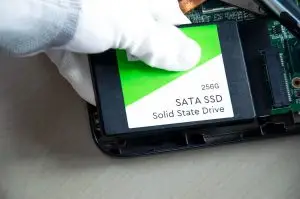
Storage is protected by geography. A 2.5 inch drive or an M.2 SSD sits in its own slot, often under a cover, away from the keyboard where most spills land. Even when it gets wet, it is usually unpowered by the time liquid reaches it, because the board has already shut down. In our lab, most water-damaged laptops arrive with a dead motherboard and a perfectly readable drive.
The first hour
- Power it off and keep it off. Hold the power button until it is fully off. Do not press the button again to check if it still works. Every power-on with liquid inside risks the short that finishes the board.
- Unplug the charger. A plugged-in charger keeps parts of the board powered even when the laptop is off.
- Remove the battery if it is removable. Most modern laptops have internal batteries. If yours does, leave it and go to the next step.
- Turn it upside down, open, in a tent shape on a towel so liquid drains away from the board rather than deeper into it.
- Do not use heat. No hair dryer, no radiator, no oven, no car dashboard. Heat drives moisture into connectors and warps plastics.
- Do not use rice. It does nothing for a sealed device and delays the cleaning that would actually help.
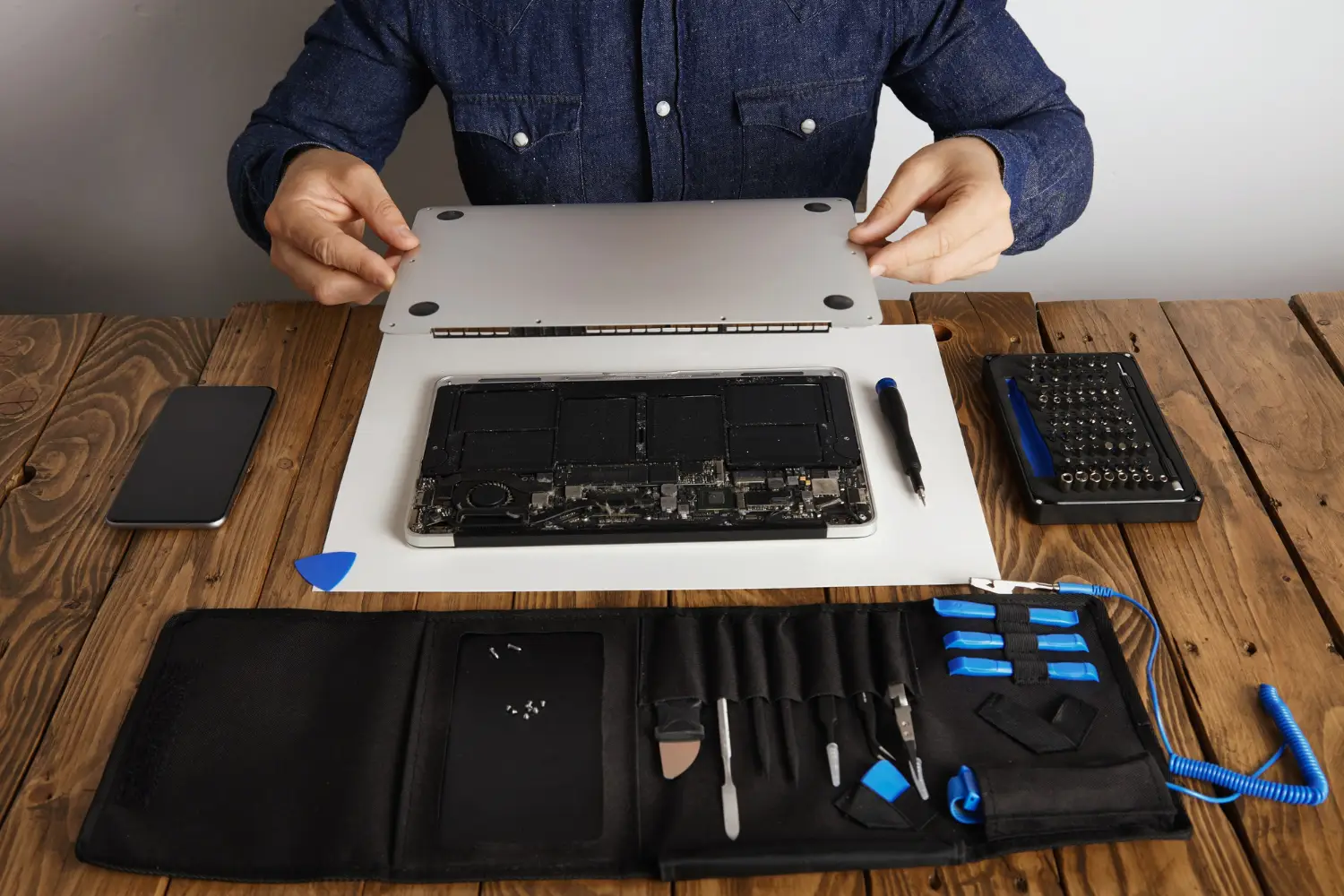
- Decide what matters more, the laptop or the data. If it is the data, the laptop should go to a data recovery lab, not a repair shop, because a repair attempt that powers the board can cost you the files.
Coffee with sugar, juice, soft drinks, and seawater leave residues that keep conducting long after they dry. A plain water spill can sometimes be cleaned and survive. A latte almost always needs professional cleaning within days.
Three kinds of laptop, three kinds of recovery
| Storage type | Typical laptops | How the data is recovered |
|---|---|---|
| Removable 2.5 inch drive or M.2 SSD | Most Windows laptops, older MacBooks, gaming laptops | Drive is removed, cleaned if wet, tested, and read directly. Usually the simplest case. |
| Soldered SSD, no hardware encryption tied to the board | Some thin Windows laptops and Chromebooks | Board is cleaned and repaired to run, or the NAND chips are read at chip level and reassembled. |
| Soldered SSD encrypted by the board (Apple T2 and M-series, some others) | MacBooks 2016 and newer, some Surface models | The logic board must be repaired to boot far enough to unlock the data. Chip-off does not help because the keys live on the board. |
If the drive itself got wet
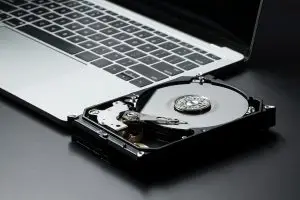
A hard drive is sealed against dust, not against being submerged. Liquid rarely gets inside the sealed chamber, but it does reach the circuit board on the underside and the connector. Corrosion on the board or a shorted component is repaired or the board is replaced with the drive’s own firmware moved across. An SSD that got wet has its board cleaned in an ultrasonic bath and its contacts inspected before any power is applied. The rule in the lab is the same as at home: nothing wet gets powered until it is clean and dry, and the first read happens on an imager, not in a laptop.
For the full process, see our water damage data recovery service page. If the drive is making noise or is not detected after drying, that is a separate mechanical problem, covered in our hard drive failure symptoms guide.
What you should not try at home
- Powering on to test it, including plugging in the charger to see if the light comes on.
- Opening the laptop and wiping the board with a cloth. Fibres and pressure damage components, and the residue stays.
- Pulling the drive and plugging it into another computer while it is still damp.
- Running data recovery software on a drive that was submerged. If it has a short, the software cannot see it, and the second power-on can be the last.
Frequently asked questions
Can you recover data from a water damaged laptop?
Yes, in most cases. Liquid usually kills the motherboard, the keyboard, or the battery circuit, while the storage drive inside stays dry or dries without damage. If the drive is a removable SSD or hard drive, we take it out, clean and test it, and recover the data directly. If the storage is soldered to the board, the board itself has to be repaired or the storage read at chip level.
Should I put my laptop in rice?
No. Rice does not draw water out of a sealed laptop, and the days it sits in a bag are days corrosion spends eating the board. Power off, remove what you can, and get the machine to someone who can open it and clean it properly. If the goal is the data rather than the laptop, that someone should be a data recovery lab.
The laptop turns on and works. Do I still need to worry?
Yes. Corrosion starts within hours and keeps going for weeks, so a laptop that works today can die next month. Back up everything now while it works, then have it cleaned or replaced.
My MacBook got wet and will not turn on. Is the data gone?
Not necessarily, but it is a different job. On MacBooks from 2016 onward and most recent thin laptops, the storage is soldered to the logic board and encrypted with keys held on that board. Recovery means getting the board to run long enough to read the data, which is board-level repair work, not a simple drive extraction.
How long does recovery take after water damage?
We evaluate within 48 hours of receiving the laptop and send a written quote. Most standard recoveries finish in 10 to 12 business days after approval, and faster options are available for an added fee. The sooner a wet laptop arrives, the less corrosion we have to undo.
Wet laptop with files you need?
Keep it powered off and bring it in. We clean, test, and recover in our own BC lab. Free evaluation, written quote, no data no fee.
Water Damage RecoveryContact UsInstant AI Evaluation